Mint an NFT using Terrain
NFTs, or non-fungible tokens, are unique digital assets that can be showcased, bought, and sold on the blockchain. Purchasing an NFT gives you ownership over the unique digital creation, similar to buying a distinct painting or art piece.
In this tutorial, you will learn how to mint your own NFT using the NFT minting application and LocalTerra.
Prerequisites
- Download Google Chrome
- Download the Terra Station extension
- Create a Terra Station wallet
- Install npm
- Install git
- Install Terrain
- Install LocalTerra
This tutorial utilizes LocalTerra which requires at least 16GB of RAM to run optimally.
1. Create your project
After installing all of the prerequisites listed above, use the following steps to set up your environment and clone the NFT minting repository, which contains the NFT minting smart contract and corresponding front end.
- Create and enter a new directory for your project.
- Clone the
NFT on Terrarepository to your project directory.
- Enter the cloned repository and run
npm installto install all relevant Node dependencies.
- Create and enter a new directory for your project.
- Clone the
NFT on Terrarepository to your project directory.
- Enter the cloned repository and run
npm installto install all relevant Node dependencies.
After all the dependencies have been installed, you can close the terminal window.
2. Start LocalTerra
LocalTerra is a complete Terra testnet and ecosystem containerized with Docker. In this tutorial, you will use LocalTerra to simulate transactions in a local testing environment.
After installing LocalTerra and all of its dependencies, open a new terminal window and run the following commands.
_2cd localterra_2docker-compose up
After starting LocalTerra successfully, you should start seeing simulated blockchain transactions.
3. Set up your wallet
In order to use your Terra Station wallet with LocalTerra, you will need to configure your wallet to run on your LocalTerra network.
-
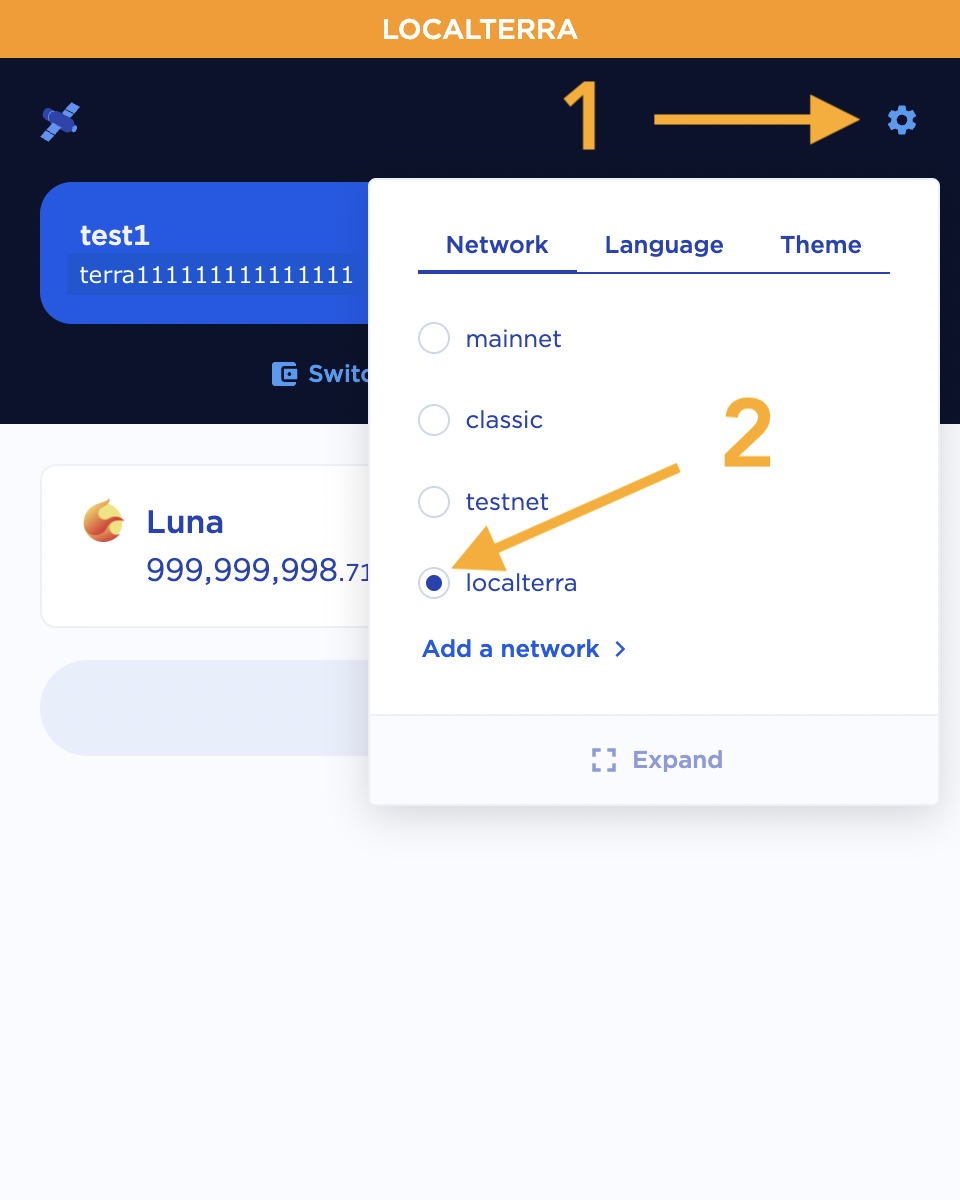
Open the Terra Station extension in your Google Chrome web browser. Click the gear icon in the upper right-hand corner and change the network from mainnet to localterra.
-
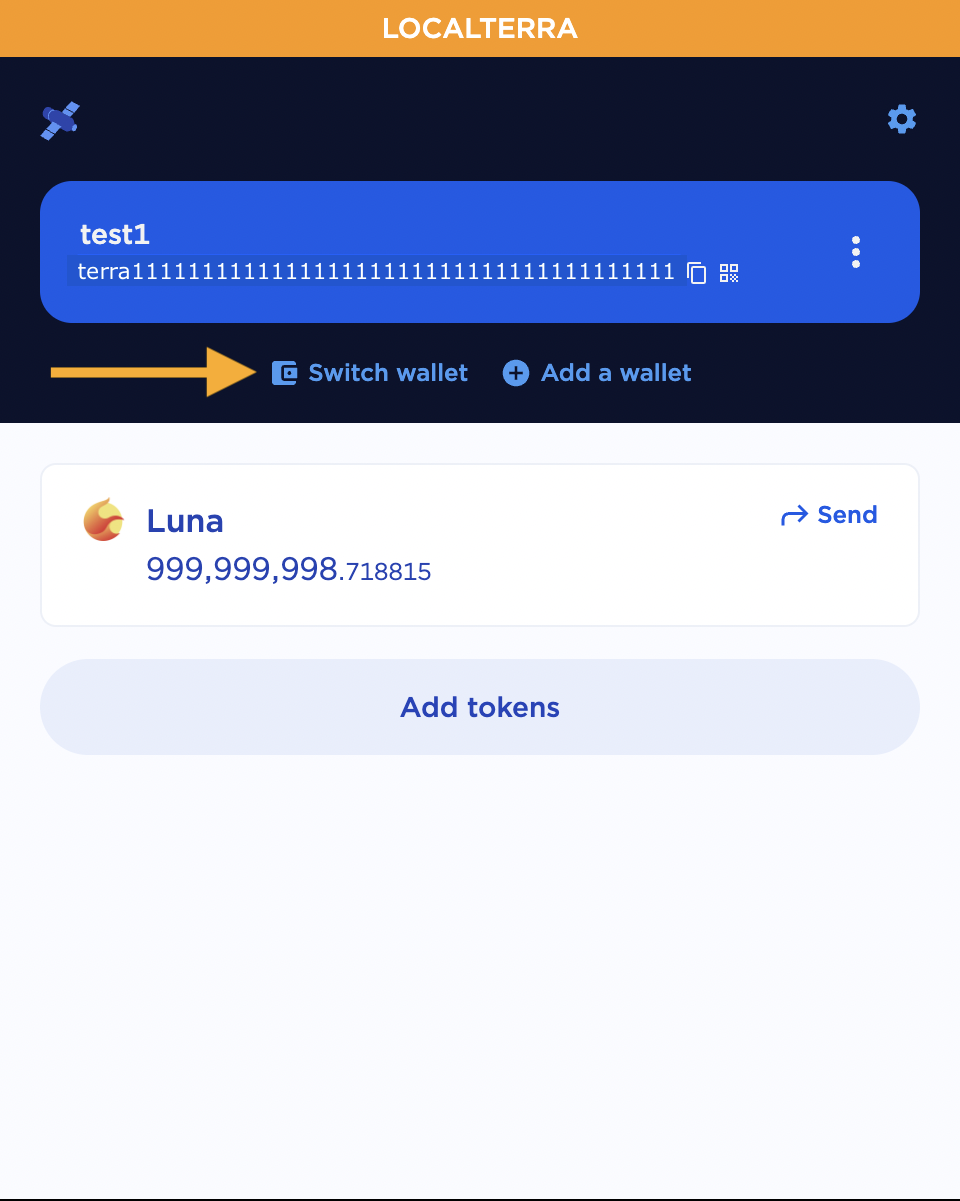
Click Switch wallet.
-
Click Preconfigured wallets… and select
test1from the drop-down list.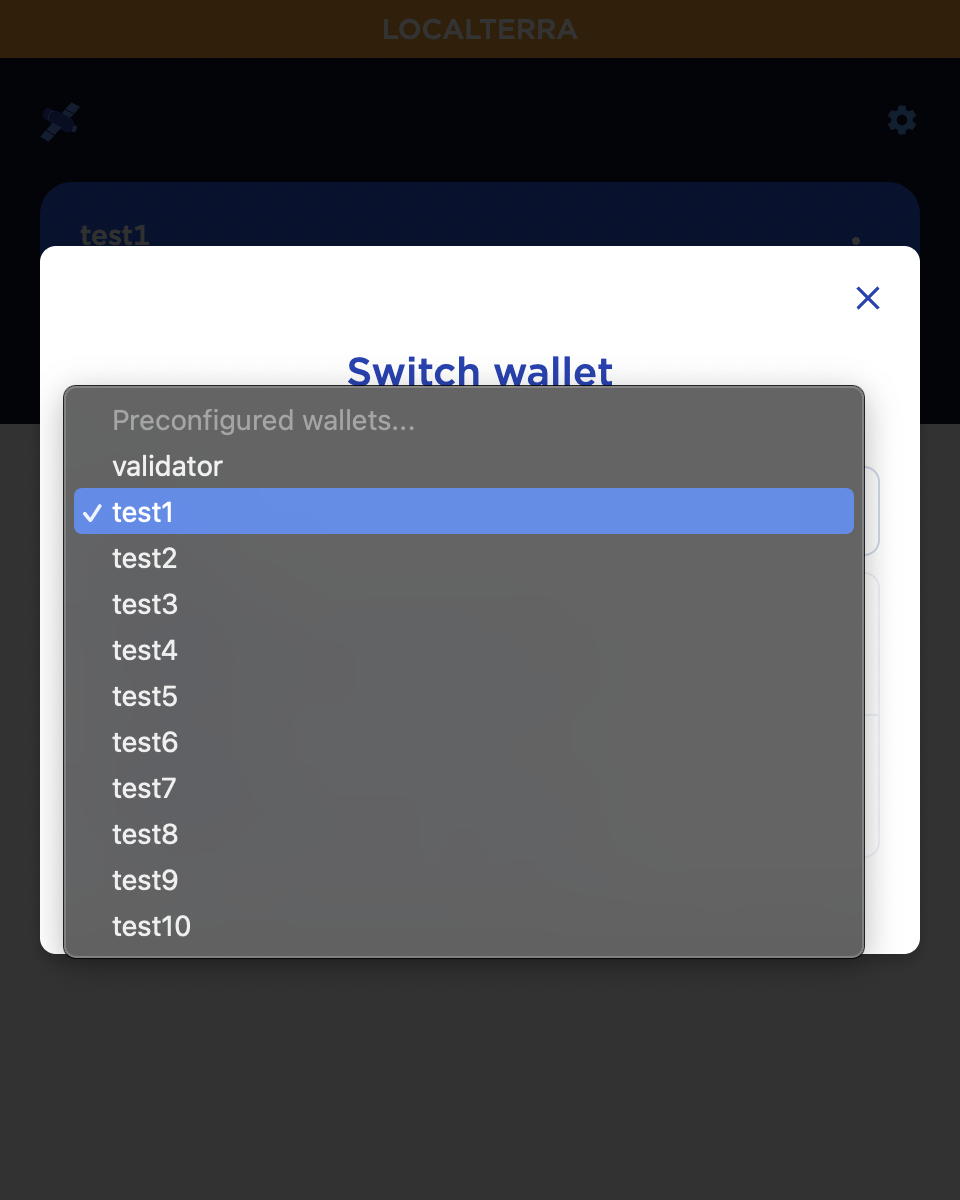
Now that you have successfully switched to the testing wallet on LocalTerra, you will be able to deploy your smart contract.
4. Update the instantiate message
Before you can deploy your contract and begin minting your NFT, you will need to change the config.terrain.json file in your cloned repository.
-
In your Terra Station extension, open your
test1wallet and copy the wallet address.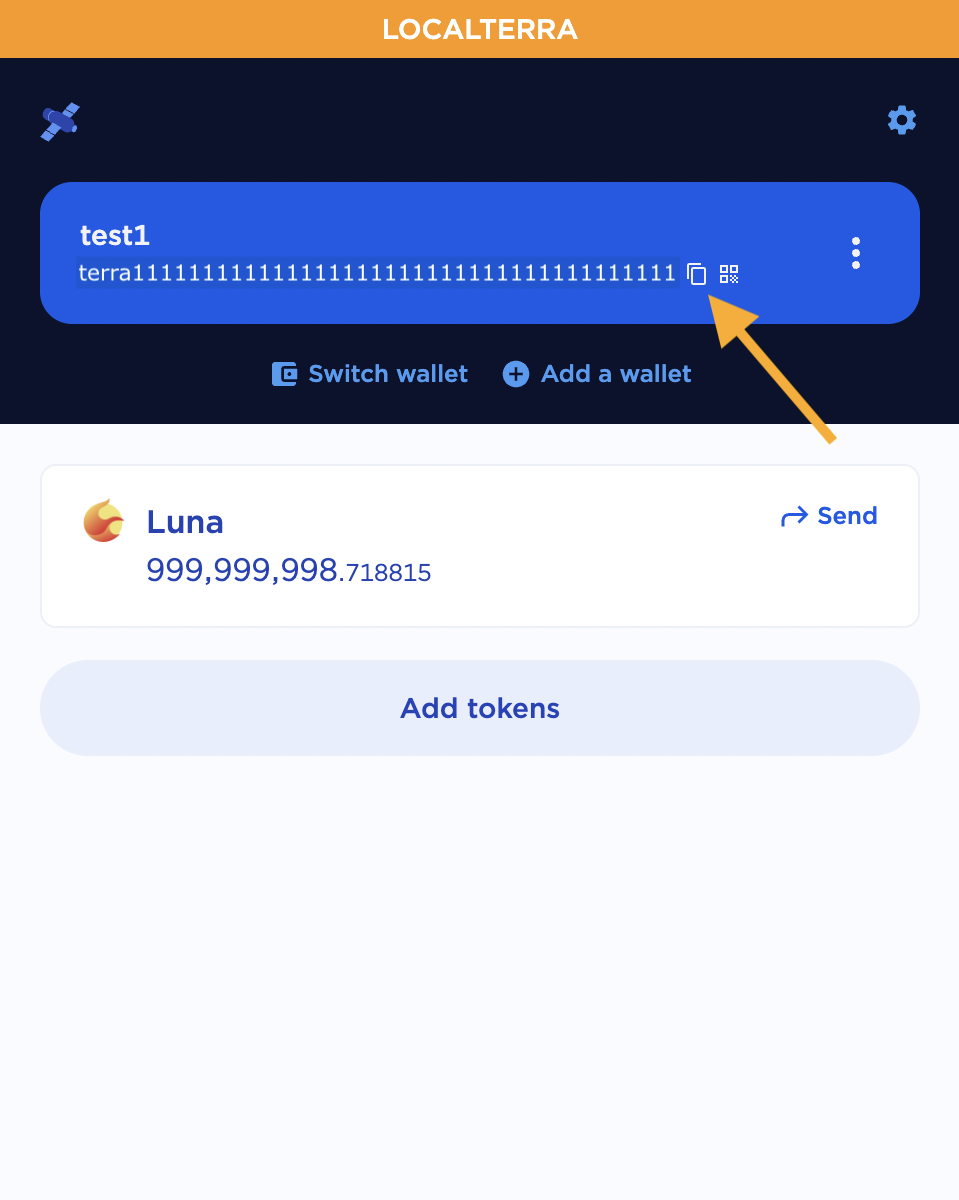
- Open the
config.terrain.jsonfile in a code editor and locate the instantiate message section.
- Update the
"name"and"symbol"fields with the desired name and symbol which will correspond to your NFT collection. The"minter"field should be updated with the wallet address of the collection owner, in this case it will be yourtest1wallet address.
- Open the
config.terrain.jsonfile in a code editor and locate the instantiate message section.
- Update the
"name"and"symbol"fields with the desired name and symbol which will correspond to your NFT collection. The"minter"field should be updated with the wallet address of the collection owner, in this case it will be yourtest1wallet address.
Be sure to double-check the parameter values in your instantiate message and save the changes to your config.terrain.json file before exiting.
5. Deploy your contract to LocalTerra
You are finally ready to deploy your contract and run the NFT minting application. Make sure you have installed Terrain before proceeding.
-
Ensure you are still running LocalTerra in a separate terminal window.
-
Open a new terminal window and run the following commands to navigate to your cloned repo and deploy your contract using Terrain.
_2cd my-nft-project/nft-on-terra_2terrain deploy cw721-metadata-onchain --signer test1
6. Launch the app front end
Once the contract deployment has successfully completed, you can run the front end application to start minting your NFT.
-
Change into the
frontenddirectory and install the node dependencies._2cd frontend_2npm install -
Start the front end applicaton:
_1npm start
Your chrome browser should open a new window and you should be viewing the front end application at http://localhost:3000/.
- Fill out all of the information on the form to mint your first NFT.
-
ID may be any value that you would like to correspond to the ID of the new NFT.
-
Enter the Name for your NFT.
-
The Owner Address is the wallet address which will be the owner of the newly minted NFT. In this tutorial, this will be your
test1wallet address. -
Use the following URL for the NFT image of Luna used in this tutorial.
_1https://assets.terra.money/icon/svg/LUNA.png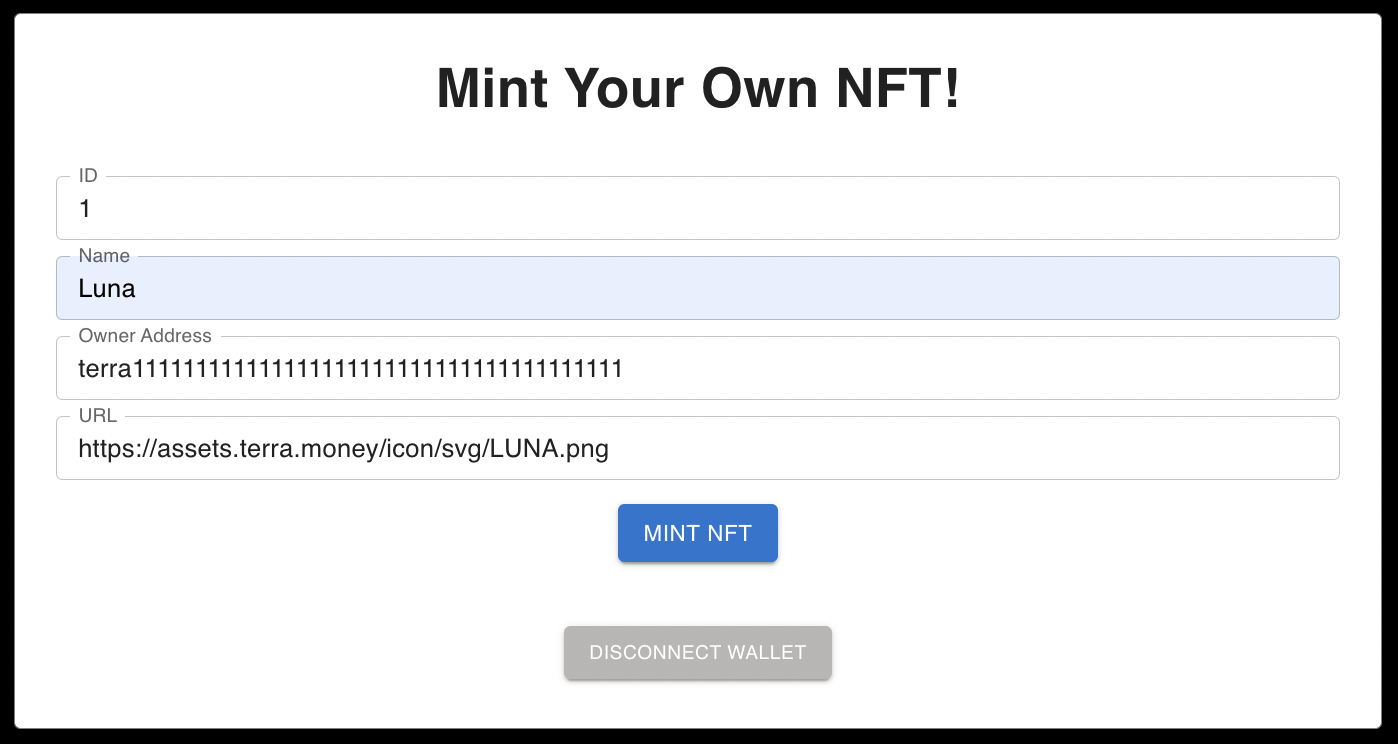
Most NFT creators host their NFTs using IPFS (Interplanetary File System). There are a variety of resources available to post an NFT on IPFS, such as Pinata. In this example, the image used is available at https://assets.terra.money/icon/svg/LUNA.png.
7. Mint your NFT
Your NFT is ready to mint!
-
Click Mint NFT. Your Terra Station extension will pop up to request confirmation of the transaction.
-
Click the Post Button.
After a few seconds, the front end webpage will display your NFT.
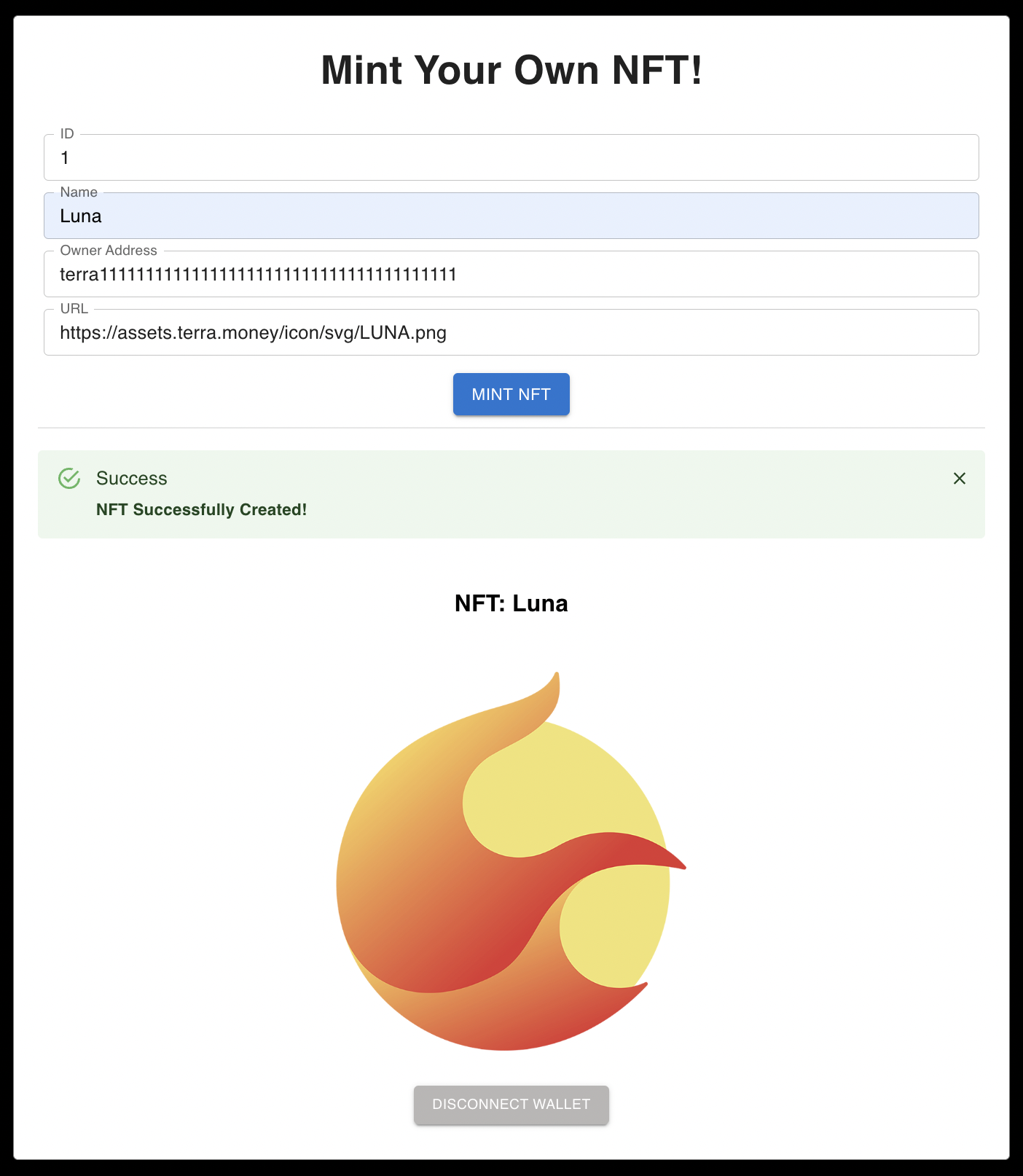
Congratulations, you have just minted your first NFT!
View Your New NFT
-
Before you can view your NFT, you'll need to locate your contract address. Open the
refs.terrain.jsonfile located in your cloned repository and copy the contract address listed after"default"._10{_10"localterra": {_10"cw721-metadata-onchain": {_10"codeId": "1",_10"contractAddresses": {_10"default": "Copy this address"_10}_10}_10}_10} -
You can view your NFT utilizing the Terra Station NFT page. Connect your wallet using the Connect button located in the upper right-hand corner of the screen.
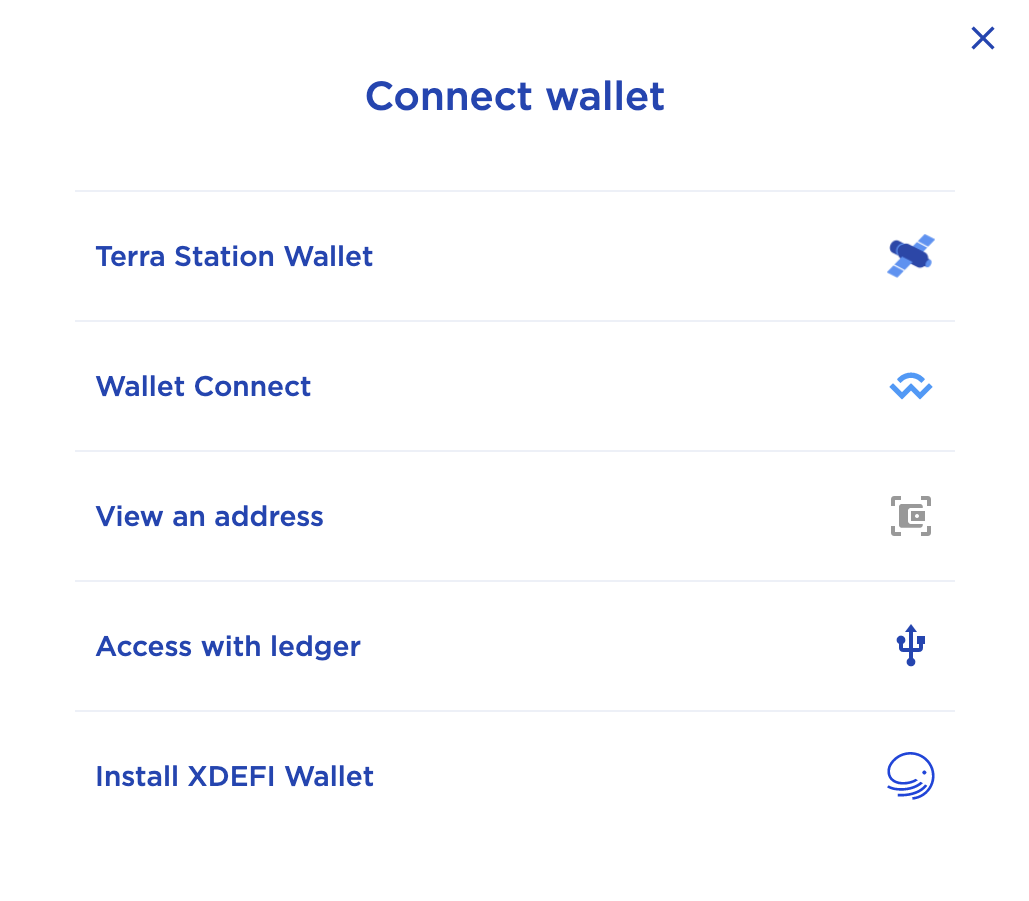
-
Click Add tokens > located in the middle of the page to open the contract search window. Paste your contract address in the search bar. Click the + button located next to the address of your NFT collection.
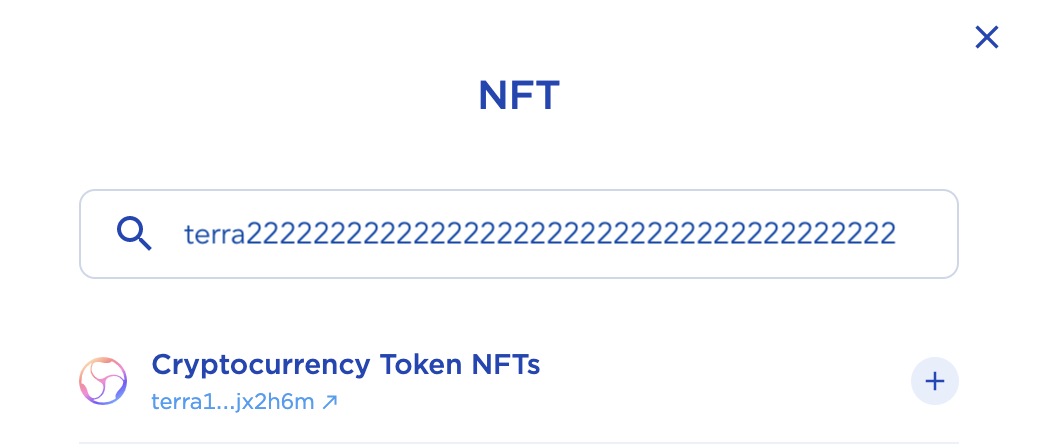
-
Close the search window and you will be presented with information on your NFT collection.
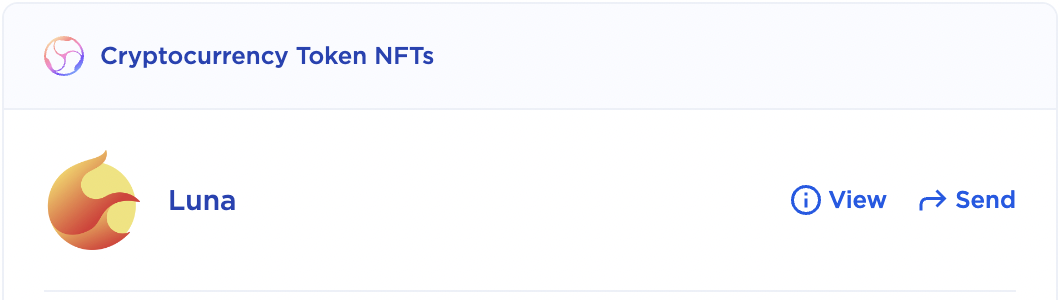
From here, you can View relevant information about your NFT or Send your NFT to any specified wallet address.
Congratulations!
You've just minted your first NFT on the Terra blockchain! If you have your own unique digital creation that you would like to share with the world, you can follow these instructions using the mainnet network and your personal Terra Station wallet.
LocalTerra is not needed for deployments on the mainnet and is primarily used for local testing and development purposes.